Build and Test for iOS
This guide shows you how to test your VRChat content on iOS by connecting an iOS device to Unity. Build and Test allows you to quickly test your worlds and avatars in VRChat without publishing it.
Set Up For Build and Test
To use Build and Test for iOS, you must set up your Unity project and connect your iOS device to the SDK.
Set Up iOS Build Support Unity Module
You must install Unity's iOS Build Support module to build or publish VRChat content on IOS. Follow the steps below to install it:
- Open Unity Hub and navigate to "Installs" on the left.
- Find the install for the Unity version that your project uses (the current recommended version is 2022.3.22f1).
- If your install lists "iOS" below the Editor path, then the module is already installed, and you can set up your project.

- Click on the gear icon next to that install and click "Add modules".
- Find "iOS Build Support" and tick the box next to it.
- Click continue to install the iOS build support module.
You should now be able to build worlds and avatars for iOS.
Set Up Your Project to Target iOS
-
Open the SDK panel by selecting "VRChat SDK"->"Show Control Panel" and then selecting the Builder tab.
-
Find the "Select Platform" section and change it to "iOS".
-
After switching your platform to iOS, you should see
[VTP] Listening on port 9002...in the console. See debugging steps if you do not see this.
VRChat Test Protocol
Build and Test for iOS makes use of the VRChat Test Protocol (VTP) to facilitate communication between the SDK and iOS devices.
The SDK uses VTP to send World and Avatar files to your iOS device over your local network, so you can instantly see the results of a build in the iOS client.
Connecting the SDK to your iOS Device
You can connect the SDK to your iOS device by entering its local IP address in the iOS app settings.
- Find the local IP address of the machine running the SDK, which can be found in the SDK settings tab by pressing the "Show Local IP Address" button.
- Enter the local IP address found in the SDK settings panel into the iOS app settings under "Settings"->"Apps"->"VRChat"->"SDK IP Address"
- Launch VRChat and press the "Play" button to enter a world.
- Once loaded into the world, the app may ask for permission to communicate over your local network. You must allow this for the VRChat Test Protocol to be able to communicate with your device.
- After accepting the local network permission, check the SDK console to see if the connection was successful. You should see
[VTP] Client connected.along with details about what device was connected. See debugging steps if you do not see this. - You can now click Build and Test to test content directly on your iOS device.
When testing avatars, you can find them in the Avatars section of the main menu, under the "SDK Test Avatars" tab.
After you select a test avatar, you automatically switch to the newest build when you build that avatar again.
Debugging Connection Issues
If you find that you are unable to establish connection between your iOS device and the SDK, follow these steps to debug the issue.
-
If you do not see
[VTP] Listening on port 9002...after switching to the iOS platform in the SDK, ensure that no other editors are open with iOS selected. Additionally, ensure that no other running applications are using port 9002, since only one application can open the port at a time. -
If you do see
[VTP] Listening on port 9002...in the console, but you're unable to establish a connection: -
Make sure that the IP address shown in the SDK settings tab matches the one in the VRChat iOS App settings page under "Settings"->"Apps"->"VRChat"->"SDK IP Address".
-
Make sure that both the SDK machine and the iOS device are on the same Wi-fi network.
-
Make sure you have allowed local network access on your iOS device. This can be found at "Settings"->"Privacy & Security"->"Local Network." Locate the VRChat app and enable the permission.
-
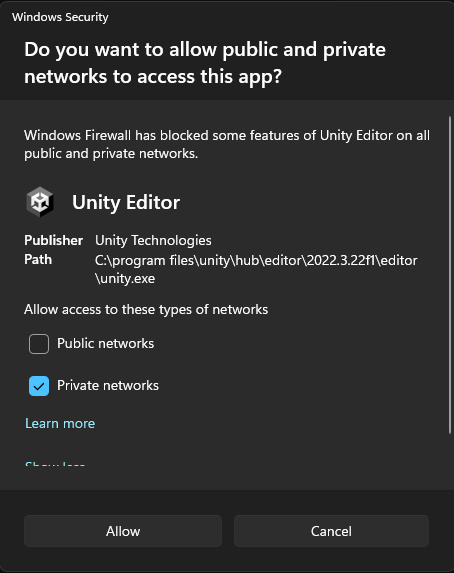
Make sure you have allowed local network access on your SDK machine. On Windows, local network access requests appear as a prompt titled "Windows Security," on which you must click "Allow access" with the Public networks checkbox checked.
-
It's possible you've disallowed access previously and the prompt does not reappear. In this case you must locate the rule in Windows Defender Firewall and allow it.
- To quickly test if this is the issue, you can temporarily disable the firewall, although it's much safer to follow the steps below to allow Unity access to your local network.
-
To enable local access for the Unity editor on Windows:
- Search "Firewall," find "Windows Defender firewall," and look for "Inbound Rules."
- In the list of inbound rules, look for any titled "Unity Editor"
- Delete any rules titled "Unity Editor" that have a red circle with a cross through it

- Relaunch the Unity editor. Once launched (and with iOS selected as the platform) you should see the "Windows Security" asking for local network permission.
VPN usage
- Since VTP communicates over the local network, usage of a VPN can prevent the SDK and iOS device from establishing connection depending on the VPN configuration. It is recommended to disable your VPN when using VTP.