VRCBillboard
Billboarding rotates an object every frame so it aims at the viewpoint: the player's camera on desktop, or their head in VR. VRCBillboard registers a Transform with VRChat's centralized billboarding system, which orients every registered object in a single client pass. This is cheaper than rotating objects yourself in an Udon Update loop, especially when you have many billboarded objects.
The client rotates a registered Transform every frame until you unregister it or destroy its GameObject.
A billboard always tracks the local player's viewpoint, either aiming at it or copying its rotation. To aim an object at anything else, use a VRCAimConstraint or VRCLookAtConstraint to point one of its axes at a source.
Add the component
For a no-code billboard, add the VRCBillboard component: Add Component > VRChat > Worlds > VRC Billboard. It registers itself on OnEnable and unregisters on OnDisable, so toggling the GameObject keeps billboarding correct.
To check it without building your world, enter Play mode with ClientSim. The object turns to face the ClientSim camera and keeps facing it as you move around.
Set the component's fields in the Inspector; see Options below for what each one does. Up From and Match Viewpoint Rotation live under the collapsed Overrides foldout, since most billboards do not need them.
To change these values at runtime, assign the matching property: Facing, AllowTilt, SmoothingFactor, UpFrom, MatchViewpointRotation. Assigning one re-registers the component, so the change applies on the next billboarding pass.
Register from a script
VRCBillboard.Register billboards any Transform. Every parameter after the first is optional, so the usual case is one line:
VRCBillboard.Register(transform);
That aims the object's own local -Z axis at the viewpoint and keeps it upright, turning only horizontally, which suits most text, labels, and signs. Pass options to change that, and see Functions for the full signature and for how to stop billboarding again.
Options
The component and VRCBillboard.Register take the same five options. Each entry below gives the Inspector field, the code parameter, and the default.
- Facing /
facing(defaultVRCBillboardFacing.Back): Which of the object's own local axes aims at the viewpoint.Back(-Z) suits UI, text and sprites;Forward(+Z) suits models with a built-in front face. See Facing below. - Allow Tilt /
allowTilt(defaultfalse): When off, the aim direction is flattened, so the object turns only around the up axis and stays upright even when the viewpoint is above or below it. When on, the object also pitches to aim directly at the viewpoint, which suits sprites and icons that should always face the viewpoint head-on. - Smoothing Factor /
smoothingFactor(default0): How much the turn is eased, in seconds, where0or less snaps each frame. The higher the smoothing factor, the longer the turn takes: the object covers approximately 63% of the way to its target rotation everysmoothingFactorseconds. Values between zero and one are recommended. The easing is framerate-independent, so it looks the same regardless of the player's framerate. - Up From /
upFrom(default empty, meaning world up): Supplies the direction the object treats as up, which controls its roll and the plane a disabled Allow Tilt flattens against. Set a vehicle or station here so content stays upright for players riding it. Setting it to the billboarded object itself counts as empty, since an object cannot be its own up reference. See Up direction below. - Match Viewpoint Rotation /
matchViewpointRotation(defaultfalse): When off, the object aims at the viewpoint's position, so its rotation depends on where it sits relative to the viewpoint. When on, it instead copies the viewpoint's own rotation, so every object using this setting ends up with the same rotation regardless of its own position. This suits UI that should stay flat to the screen rather than converge on the viewpoint.
Facing
facing selects one of the object's own local axes, and the client rotates the object so that axis points at the viewpoint. The values mirror the Vector3 constants of the same name, so Back is the local -Z axis, Up is the local +Y axis, and so on.
facing | Axis aimed at the viewpoint | Typical content |
|---|---|---|
Back (default) | local -Z, Vector3.back | Canvas (UI), TextMeshPro, Quad, Plane, SpriteRenderer |
Forward | local +Z, Vector3.forward | An imported model with a built front face |
Up | local +Y, Vector3.up | Content drawn on the top of an object |
Down | local -Y, Vector3.down | Content drawn on the underside of an object |
Left | local -X, Vector3.left | Content drawn on the left side of an object |
Right | local +X, Vector3.right | Content drawn on the right side of an object |
Unity draws flat content so it reads correctly when seen from the object's local -Z side, which is why Back is the default and suits Canvas, TextMeshPro, Quad, Plane and SpriteRenderer. An imported model usually has its front built along local +Z instead, so those want Forward.
To work out which value you need without thinking about axis names, select your object and look at the blue Z arrow in the Scene view. If the side you want players to see is the side that arrow comes out of, use Forward. If the arrow comes out the back of it, use Back.
Up direction
By default a billboard stays upright against world up, and does not roll when a player tilts their head.
upFrom overrides that reference with another Transform's up direction. Set it when a player's own sense of up has been changed, such as a rider in a station mounted on a wall or in a vehicle that banks, and pass the station or vehicle Transform. The client reads that Transform every frame, so content stays upright for the rider while the vehicle moves.
upFrom also defines the plane that allowTilt: false flattens against, so a yaw-only billboard turns around the rider's up rather than the world's.
Functions
VRCBillboard.Register
Aims the object at the local player's viewpoint. The full signature, with each default shown:
VRCBillboard.Register(
    Transform transform,
    VRCBillboardFacing facing = VRCBillboardFacing.Back,
    bool allowTilt = false,
    float smoothingFactor = 0f,
    Transform upFrom = null,
    bool matchViewpointRotation = false);
The parameters you want are rarely the first ones, so use named arguments to set just those and leave the rest at their defaults:
VRCBillboard.Register(transform, allowTilt: true, smoothingFactor: 0.25f);
Registration is keyed by Transform, and each Transform has one set of options. Registering a Transform that is already registered replaces its previous options, so the most recent call wins. This matters when more than one script touches the same object: if two scripts register the same Transform with different options, the object uses whichever registered last.
VRCBillboard.Unregister
VRCBillboard.Unregister(transform);
Stops billboarding a Transform, no matter which script registered it. If one script unregisters a Transform that another script is responsible for, the object stops billboarding until that other script registers it again.
Example
Register the object when it becomes active and unregister it when the object is disabled. Pairing OnEnable with OnDisable keeps billboarding correct if the object is toggled off and on again.
This example passes allowTilt: true so the object pitches up and down to face the viewpoint directly, which suits a sprite or icon. Omit the argument, as shown in the comment, to keep the object upright with yaw-only rotation. That is the better choice for text, labels, and signs.
- Udon Graph
- UdonSharp
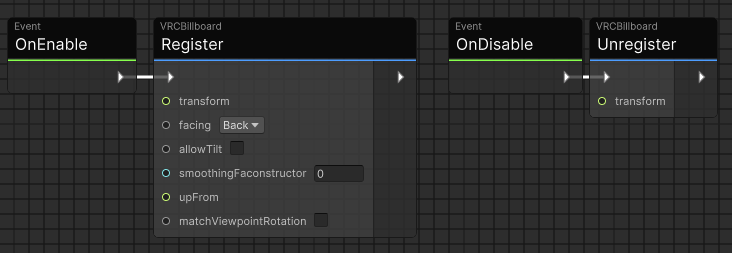
In the Udon Graph, use the Register node for this, found under VRCBillboard. Leave a port unconnected to use that parameter's default value. See the note below for upFrom when the object you billboard is not the object the graph is on.
When the target transform in the graph's Register node is a different object, you must also connect upFrom. Connect a Const null for the default of world up, or a Transform whose "up" direction you want to use. When the target is the object the graph is on, which is the default, we handle this behind the scenes.
This is needed because an unconnected Transform port in the Udon Graph resolves to the object the graph is on rather than to the parameter's default value. When the target is that same object, Register recognizes the self-reference and treats it as world up. When the target is a different object, the graph's own object is a legitimate up reference rather than a self-reference, so it cannot be told apart from one you meant to pass.
using UdonSharp;
using UnityEngine;
using VRC.SDK3.Components;

public class BillboardLabel : UdonSharpBehaviour
{
    public Transform Vehicle;

    void OnEnable()
    {
        // Keep this label facing the viewpoint,
        // including pitching up and down if the user jumps / crouches etc.
        VRCBillboard.Register(transform, allowTilt:true);

        // With no parameter passed, it will stay upright, no tilt:
        // VRCBillboard.Register(transform);

        // For a model with its front face built along +Z, aim that face instead:
        // VRCBillboard.Register(transform, VRCBillboardFacing.Forward, allowTilt:true);

        // Stay upright for a player riding a vehicle that banks:
        // VRCBillboard.Register(transform, upFrom:Vehicle);
    }

    void OnDisable()
    {
        VRCBillboard.Unregister(transform);
    }
}
You do not actually need to unregister a Transform when its object is destroyed; the system drops destroyed objects automatically. Unregister when you want a still-existing object to stop being billboarded.
Reading a billboard's rotation
The billboarding pass runs after Udon's PostLateUpdate event, so it is the last thing to set a registered Transform's rotation each frame. Anything that reads that rotation from Update, LateUpdate or PostLateUpdate sees the previous frame's value rather than the one the player is about to see.
This only matters if you drive something else from a billboard's rotation, such as parenting an object to it in script or copying its rotation onto another object. Aim that second object at the viewpoint with its own VRCBillboard.Register call instead, and both resolve in the same pass.